|
1.
|
Connect the Spectrum Master to a PC by using USB or Ethernet. Refer to the Master Software Tools (MST) User Guide (on the CD‑ROM) for information regarding connecting your Spectrum Master to a PC.
|
If you are using USB, then refer to “Update Firmware”. If you are using Ethernet, then continue with Step 2.
|
•
|
|
a.
|
|
b.
|
 |
|
4.
|
 |
|
5.
|
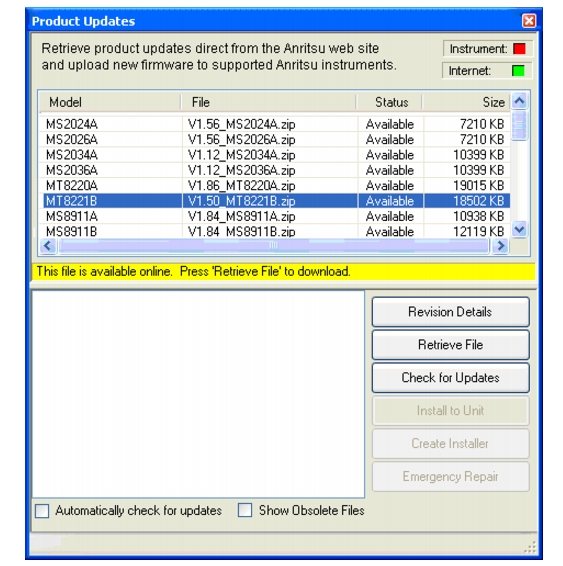
In Figure: “Product Updates Window: Status Ready”, the status of the highlighted file is Ready, and the Install to Unit button is active. You can immediately click Install to Unit to update your Spectrum Master with the new firmware.
In Figure: “Product Updates Window: Status Available”, the status of the highlighted file is Available, and the Install to Unit button is gray and inactive. This means that the updated file is on the Anritsu Product Support Web site and needs to be downloaded to your PC. After the file has been downloaded and placed on your PC, its status changes to Ready, and the Install to Unit button becomes active.
|
Screen captured images are provided as examples. The images shown on your instrument may differ from the examples in this user guide.
|
 |
 |
|
1.
|
|
2.
|
|
1.
|
Check that the file status is Available.
|
|
2.
|
|
3.
|
|
4.
|
You might open the Product Updates window and not find the file that you are looking for. In that case:
|
1.
|
Click the Check for Updates button. Master Software Tools checks for the latest updates at the Anritsu Product Support Web Site. New updates that are found are listed in the file menu.
|
|
2.
|
|
3.
|
After the status changes to Ready, click the now‑active Install to Unit button. Your Spectrum Master is updated with the new firmware.
|
If you do not find the latest update, or if you encounter a problem with updating the firmware, then contact Anritsu. Internet links to worldwide Anritsu locations can be found at the following URL:
Refer to the Master Software Tools (MST) User Guide (on the CD‑ROM) for information regarding connecting your Spectrum Master to a PC. Also refer to “Update Firmware”.
